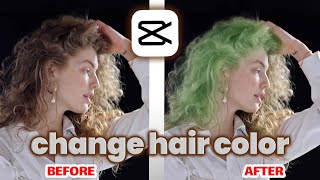
Cap Cut Hair Colour: A Virtual Makeover Guide
Want to see how a new shade would look on you before you pick up a brush? Cap Cut Hair Colour techniques let you experiment with vibrant hues, pastel tones, or subtle highlights—all from the comfort of your phone. This article walks you through creating a realistic hair colour change using CapCut, the popular video‑editing app, and shows how to combine it with a virtual hair makeover for a polished final look.
Why Try a Virtual Hair Makeover?
Changing hair colour can be a big commitment, and many people wonder, “Have you ever wanted to change your look without the risk?” A virtual makeover solves that problem. By editing a short clip of yourself, you can:
- Visualise multiple shades in real time.
- Share the results with friends for instant feedback.
- Plan a salon appointment with confidence.
CapCut’s intuitive interface makes it especially easy for beginners. In just a few minutes you can switch up your style, test trending colours, and even add a trending background to match the vibe you’re aiming for.
Getting Started: Preparing Your Footage
1. Record a Clean Clip
- Choose a well‑lit area with natural or soft artificial light.
- Wear a solid‑coloured top that contrasts with your hair.
- Film a short video (10–15 seconds) of yourself turning your head slowly, showing the full length of your hair.
Good lighting is the foundation of a believable colour edit. Shadows and highlights will be preserved by CapCut, giving the final result a more realistic appearance.
2. Import the Video into CapCut
Open CapCut, tap New Project, and select the clip you just recorded. The app will load the footage onto the timeline, ready for editing.
Cap Cut Hair Colour: Editing Steps
Step‑by‑Step Tutorial
- Duplicate the video layer. This creates a backup you can toggle on/off while you work.
- Tap Adjust > Hue and slide the colour wheel until you reach the base tone you desire (e.g., ash blonde, copper, pastel pink).
- Use Mask to isolate the hair. Draw a feathered outline around your strands, then refine the mask by dragging the edges to follow the natural flow of the hair.
- Apply Brightness and Contrast tweaks to match the original lighting. Slightly increase the Saturation for vivid colours, but keep it under control to avoid an artificial